Task List is installed
Pin it to your toolbar so your tasks are always one click away.
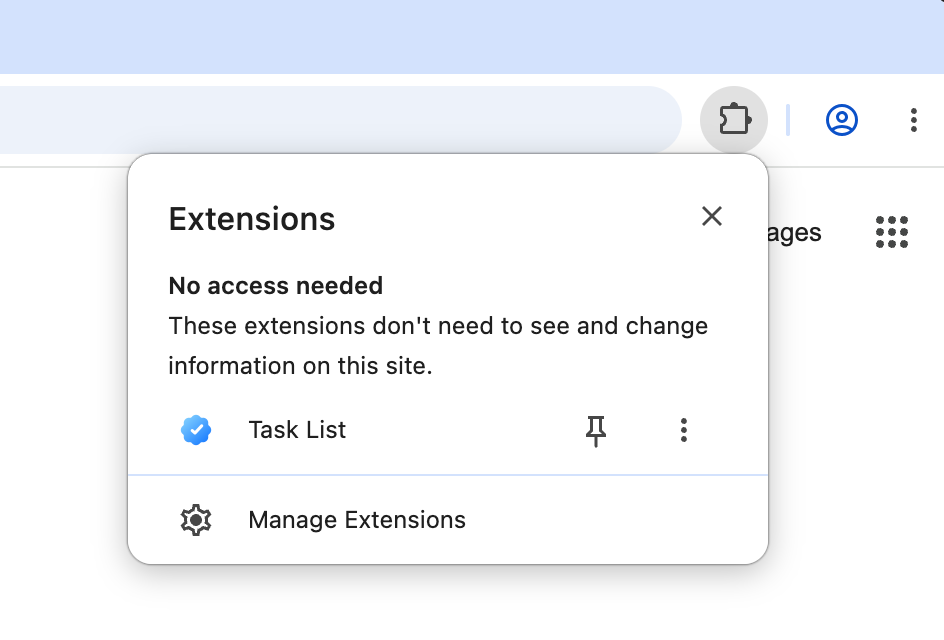
Click the puzzle piece 1 in the top right of your browser, then click the pin 2 next to Task List:
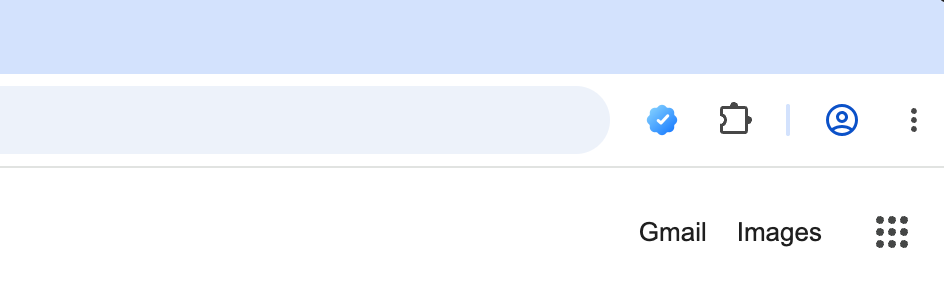
Now click the Task List icon 3 on any page to open your tasks:
Already pinned? See how to use Task List
Task List is ready
It’s on your toolbar. Here’s how to get the most out of it.
-
1Open your tasks
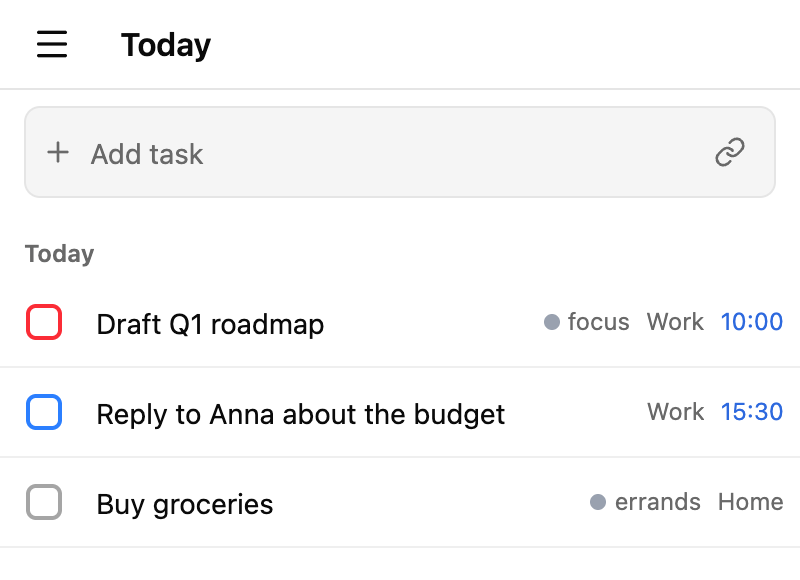
Click the Task List icon on any page, or press Alt+T.
Want it next to the page you’re reading? Turn on Open in side panel in the menu.
-
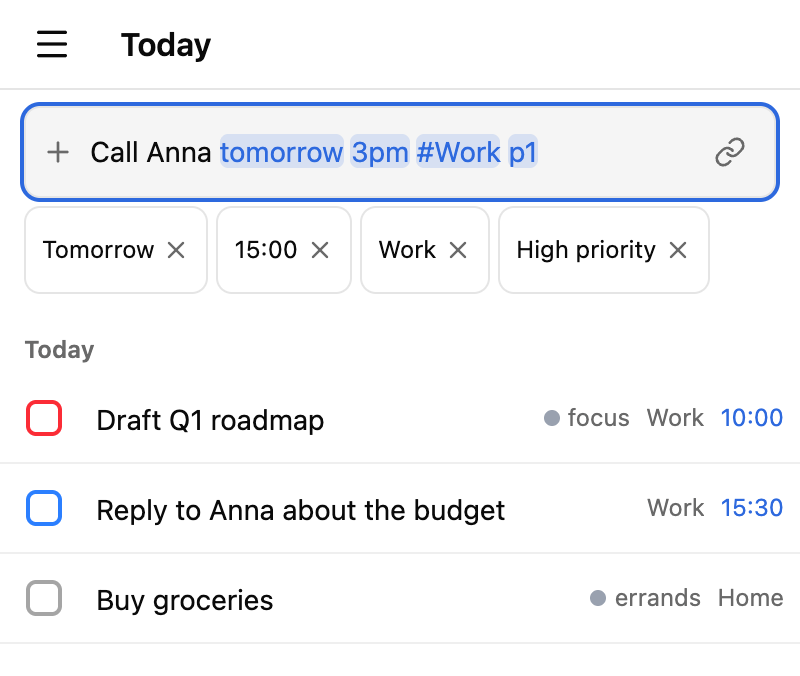
2Add tasks in plain words
Type a task the way you’d say it: Call Anna tomorrow 3pm #Work p1.
Task List picks up the date, time, list and priority as you type.
-
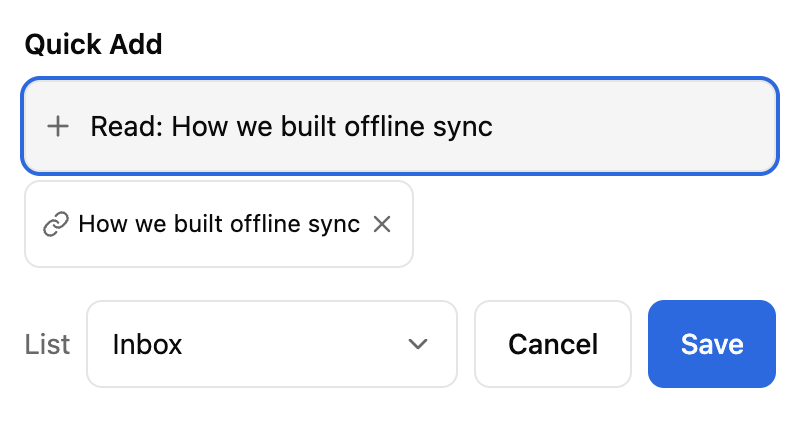
3Save any page as a task
Right-click a page, a link or selected text and choose Add to Task List, or press Alt+Shift+A.
The task keeps a link back to the page.
-
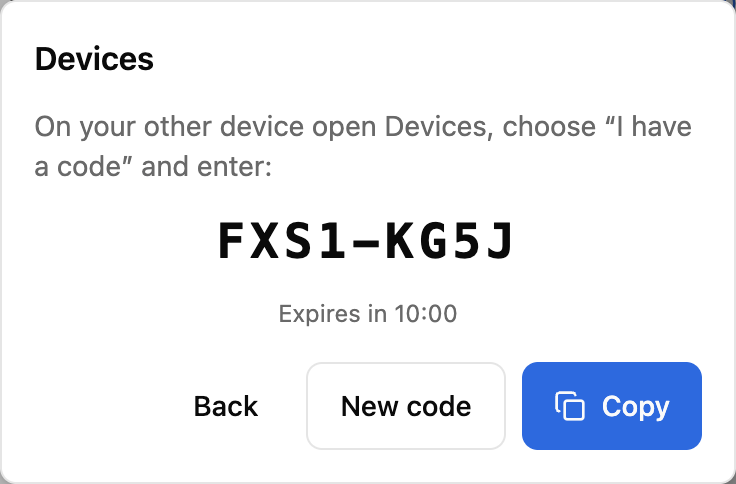
4Use it on all your devices
Open Devices and choose Connect another device. On your other computer, choose I have a code and enter the code.
Your tasks sync automatically and work offline too.
These are the default shortcuts. You can change them at chrome://extensions/shortcuts.
Don’t see the icon on your toolbar? Show how to pin it